
The form termination of employment is used when you are leaving the organisation.
If you are moving to a new position internally, retiring, or resigning from one of several positions, you should not use this form. In such cases, you must contact your employer.
If your organisation uses DFØ HR, you cannot submit your resignation through the self-service portal. Please refer to the separate user guide for DFØ HR.
The termination form can be found under the tile Employment status in the self‑service portal.
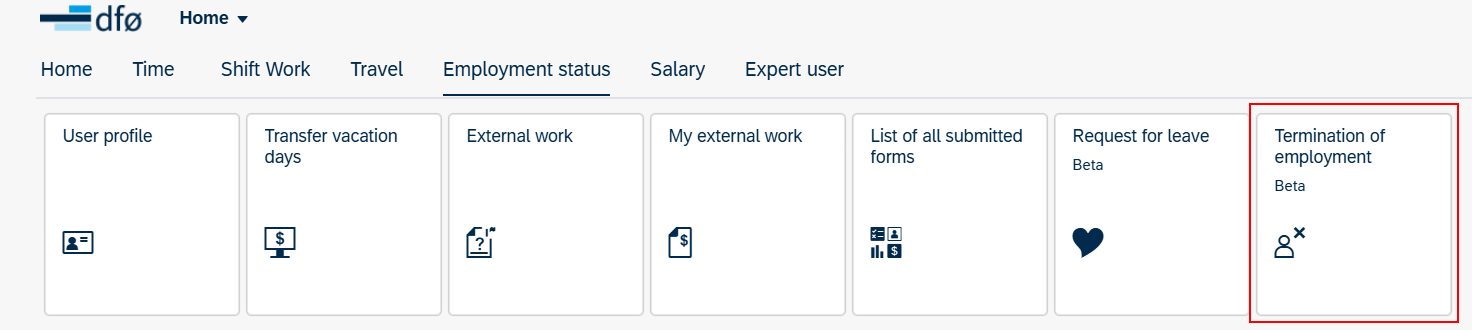
Here you can create a new termination request or check the status of submitted forms. You can view the status of previous forms on the left, in the Overview column.
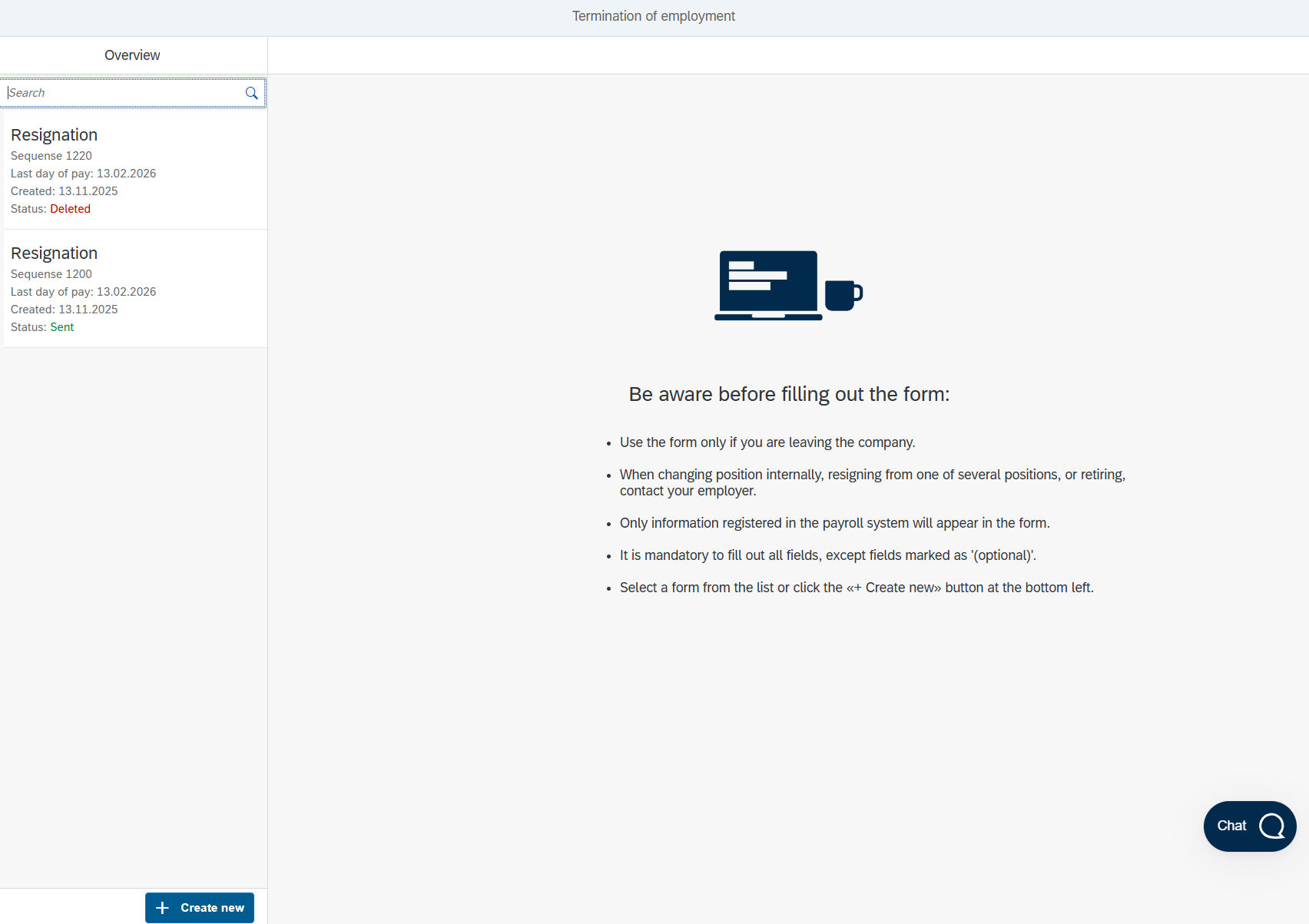
Creating a termination request
Select the tile Termination of employment in the self‑service portal.
Create a new termination form by selecting the button +Create new at the bottom left.

The form consists of five steps that you must review before submitting the termination to your immediate manager.

Select the Step button at the bottom left of each step to continue.
Example:

You will receive a notification if something has been filled in incorrectly, is missing, or requires additional attention. A red notification requires correction in the form before you can continue.
Example of a red notification:

A yellow notification does not necessarily mean that anything has been registered incorrectly, but that something requires additional attention. You may continue if the registration is correct.
Example of a yellow notification:

Select the help text icon (question mark) if you need further explanation for any of the fields.

You may exit the form at any time by selecting the Cancel button at the bottom right. Anything you have entered in the form will then be deleted.

The termination form is used to calculate your final settlement. It is therefore important that you review the information in each step and discuss any relevant points with your employer where appropriate.
Completing the form
Step 1 – Reason for resignation
In Step 1, you register the reason for resignation. You will also be shown information about the position you are registered with under your employer.
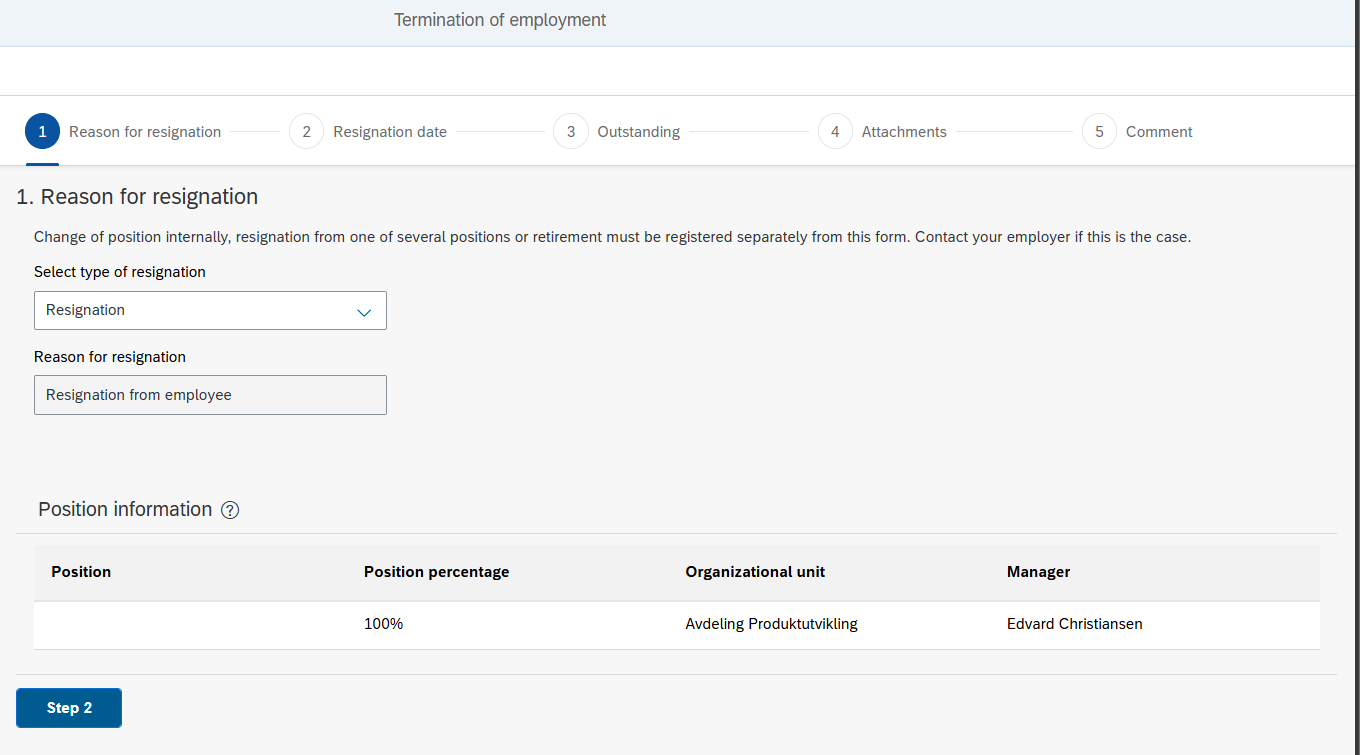
If you hold multiple positions, these will also be shown. Note that you cannot resign from one of several positions, or part of a position, using this form.
If you intend to resign from your entire employment relationship, you may proceed to Step 2 Resignation date.
Step 2 – Resignation date
In Step 2, you must enter the Resignation notice date and the Last day of pay. Please refer to the help texts for guidance.
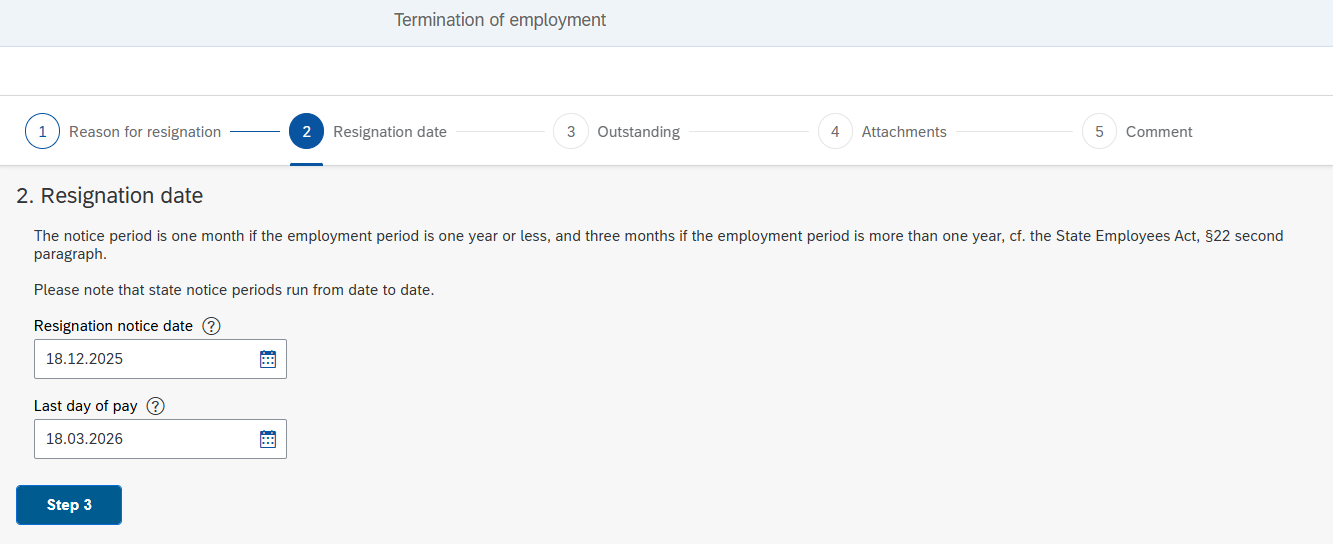
Select the Step 3 button to continue in the form.
Step 3 – Outstanding
Step 3 Outstanding contains information about hours, travel claims and loans that have been registered but not settled as of today.
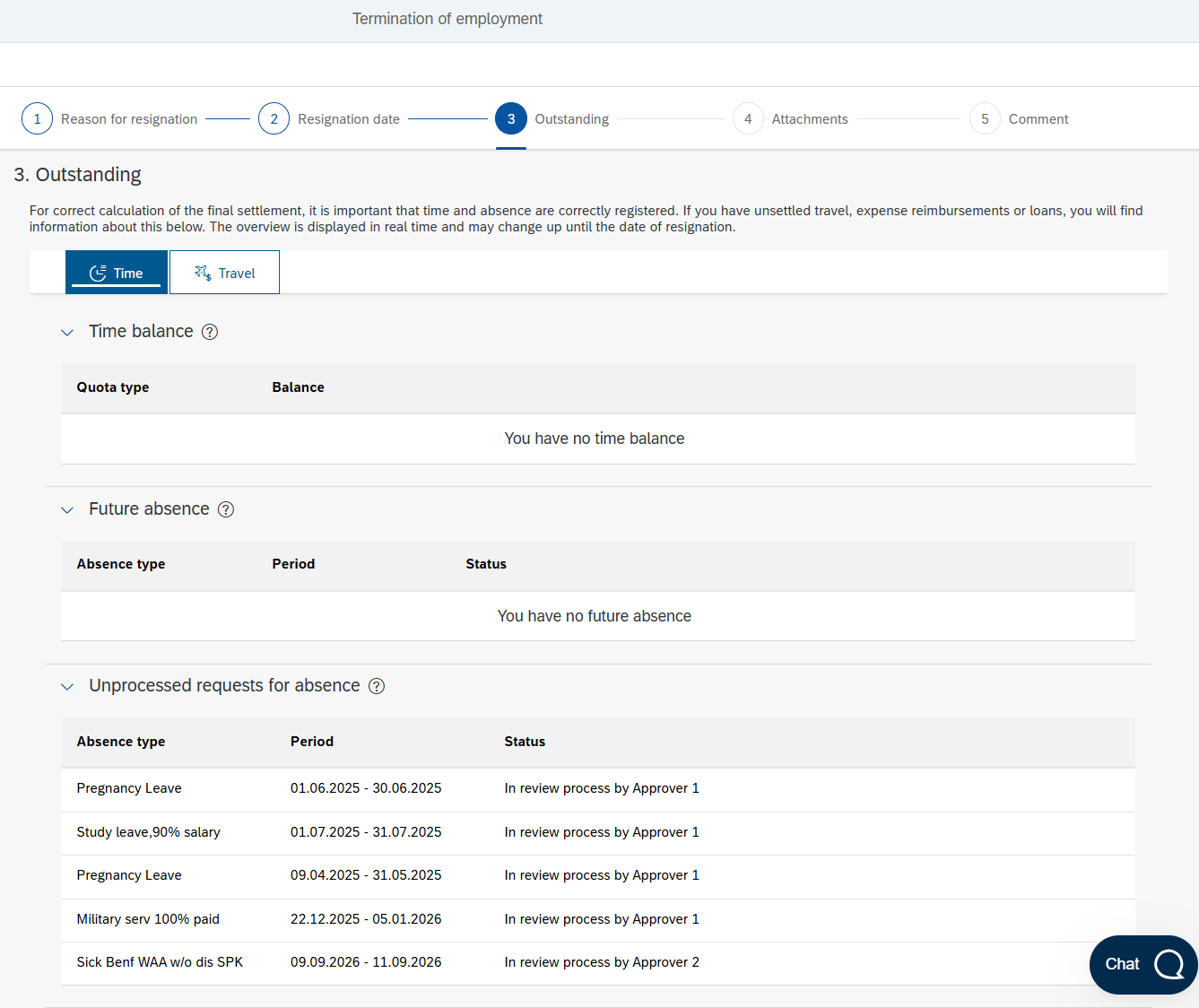
The information in step 3 is divided into up to three tabs, depending on what has been registered for you in the payroll system. Some tabs may therefore be hidden. For example, the Loan tab will only appear in your form if you have any loan that have not been settled in the payroll system.
Time tab
The Time tab concerns time registration and absence.
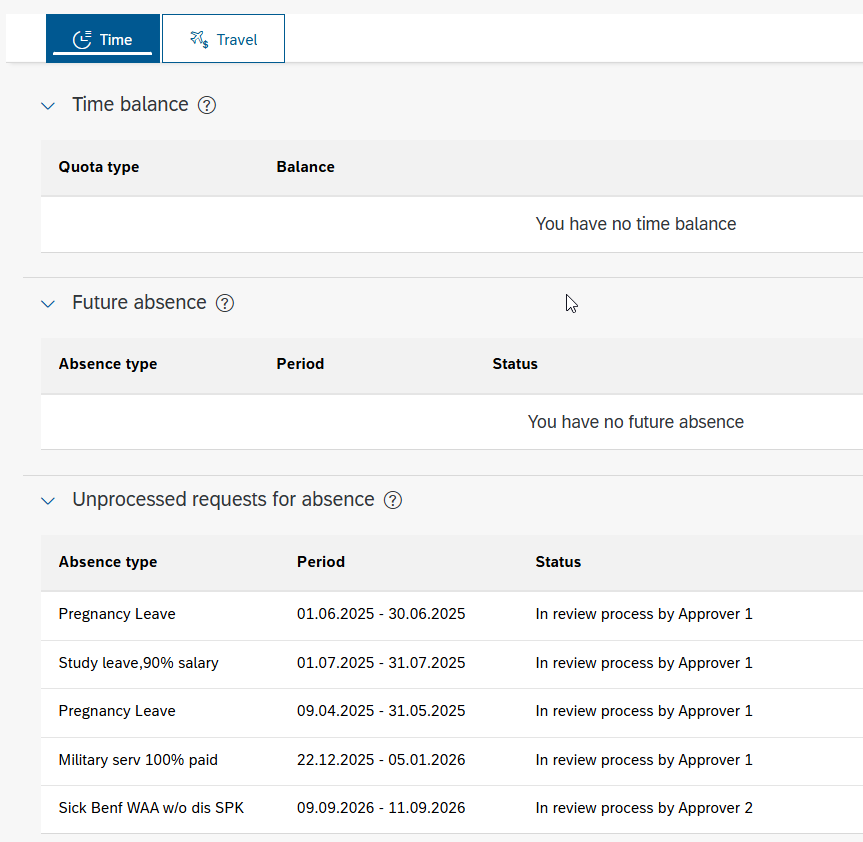
The Time balance shows quotas that may affect your final settlement. Here you can, among other things, see whether you have remaining holiday days (paid holiday) and the status of your flexitime. Select Show explanation for more information about each quota.
If you have absence registered in the payroll system after today’s date, this will appear under Future absence. Any absence beyond the last day with pay will be deleted when the termination is registered in the payroll system.
Unprocessed requests for absence are requests you have submitted but that have not yet been approved. An absence request may affect your balances if it is approved by your manager.
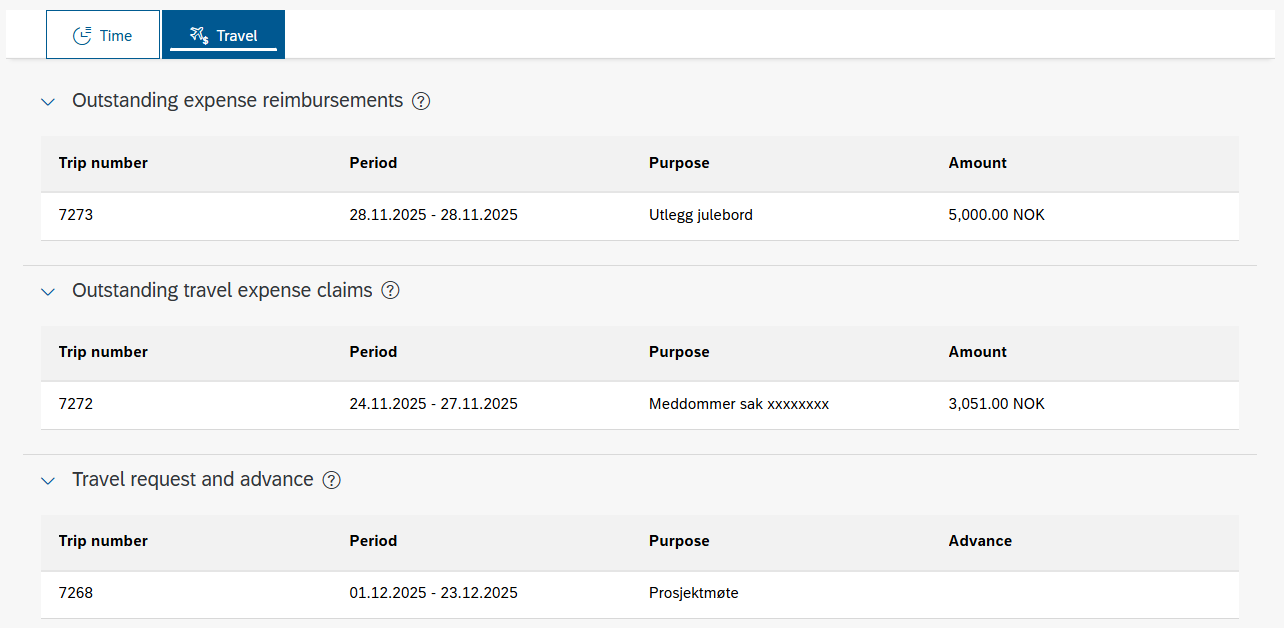
Travel tab
Under the Travel tab, you can view expense reimbursements and travel claims that have been submitted but not yet approved. You will also be able to see whether you have submitted a travel request.
Loans tab
The Loans tab shows an overview of payroll loans or borrowed items if these have been registered for you in the payroll system.
- Payroll loans – If you have a payroll loan that has not been fully repaid, it will appear in the form. In some cases, the remaining loan amount will be repaid before your termination date, for example through upcoming salary payments.
- Select whether you consent to any remaining loan amount being deducted from your final settlement. If you choose not to consent, you may enter a comment in step 5 explaining how the remaining loan amount should be settled.
- Borrowed items – Borrowed items from your employer will only appear in the form if they are registered in the payroll system. Examples may include a mobile phone or keys.
Step 4 – Attachments
If you have documentation that is relevant to your termination, you may upload it in step 4 Attachments.
Examples of relevant documentation may include a copy of an email in which you previously submitted your resignation, or a confirmation from your employer if you have agreed on the date of termination.
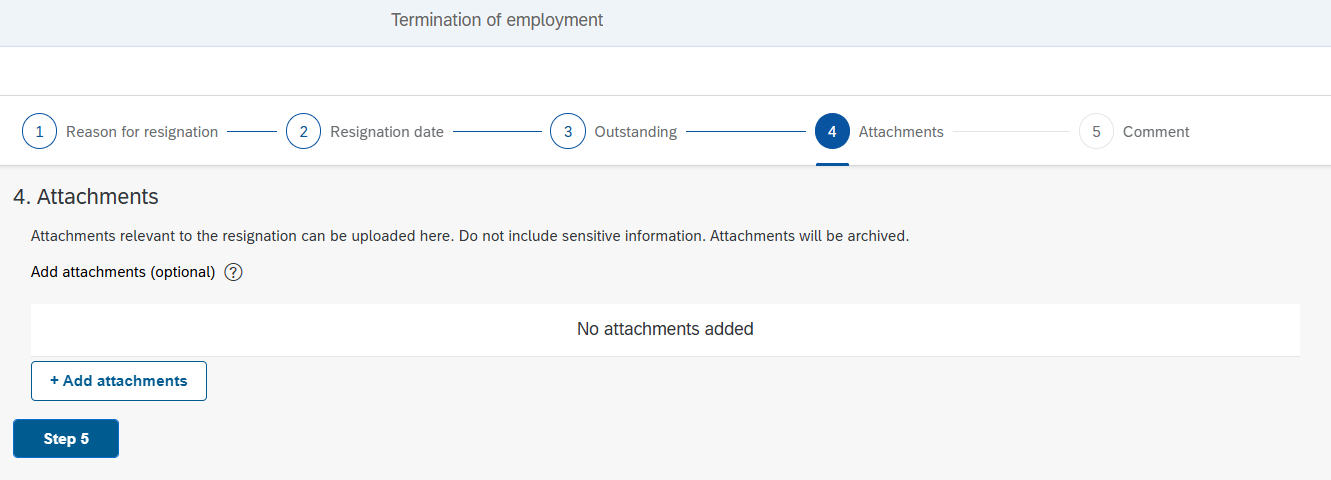
Select the +Add attachment button to upload an attachment. Attachments must be in PDF, JPG or PNG format and must not exceed 25 MB.
When you have finished uploading attachments, or wish to continue, select the Step 5 button.
Step 5 – Comment
Any comments can be added in Step 5 Comment. This is optional.
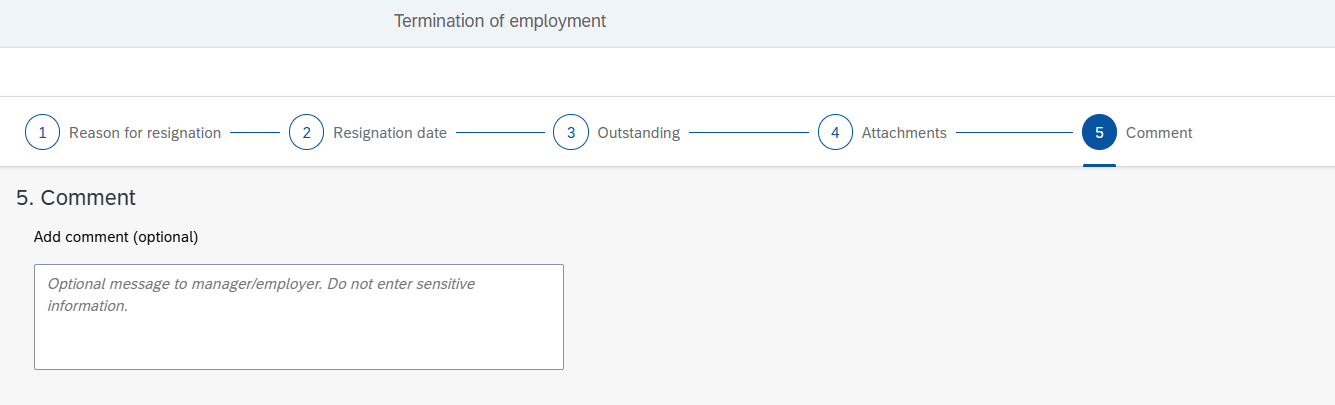
When you have completed the termination form, submit it to your manager by selecting the Send button at the bottom right.
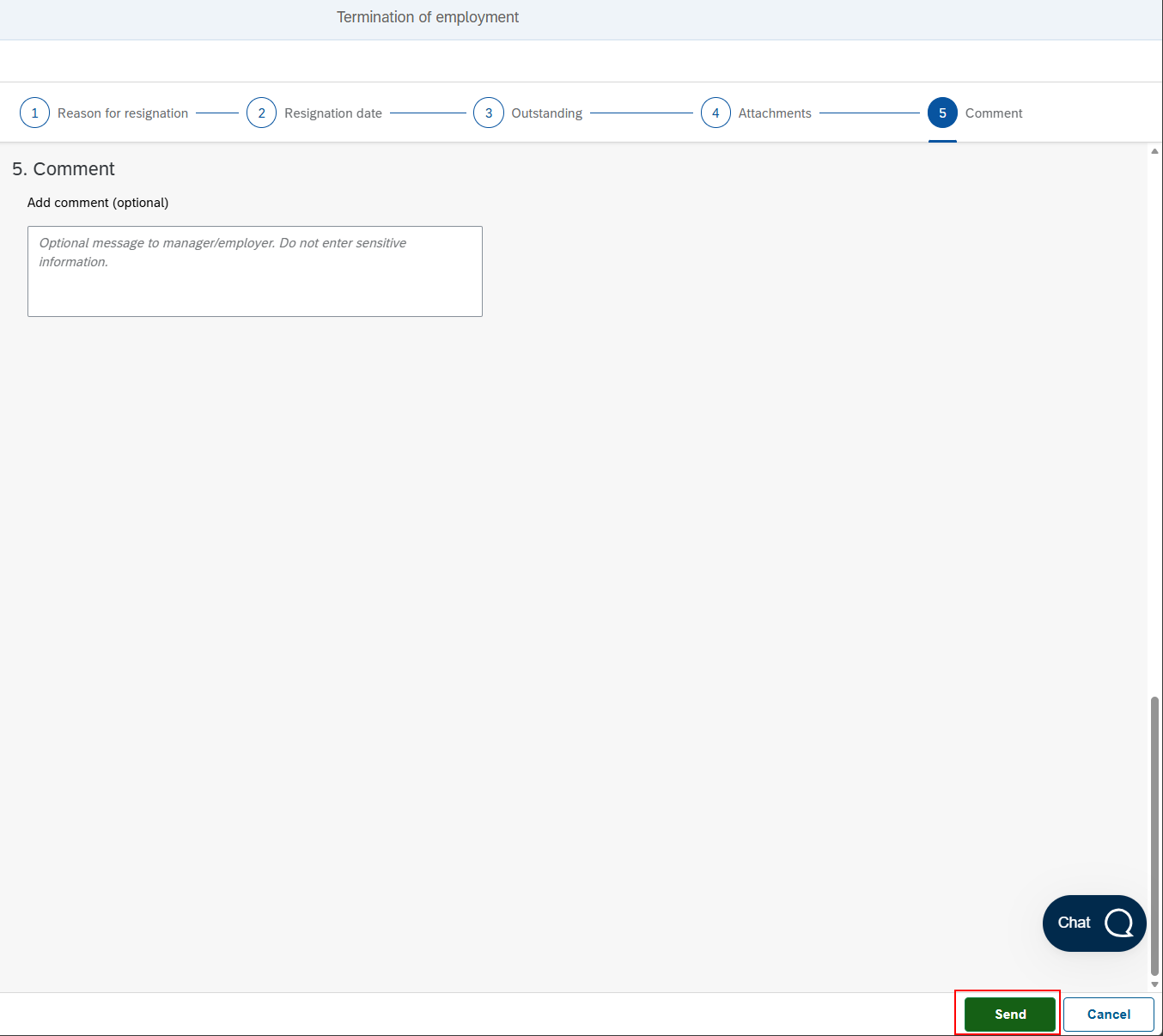
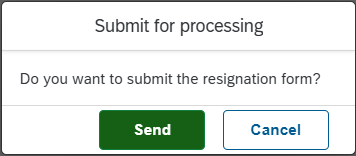
Confirm the submission by clicking Send.
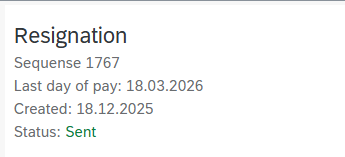
When the termination has been submitted, a confirmation will appear on the screen.

A form that has been submitted for processing can no longer be edited or deleted.
You can see the status of the form in the menu on the left.
A form may have the following statuses:
- Draft
- Sent
- Completed
- Deleted
Returned termination form
You will receive an email notification if the termination form has been returned to you by your manager. Returned forms are processed in New Inbox (Ny innkurv).
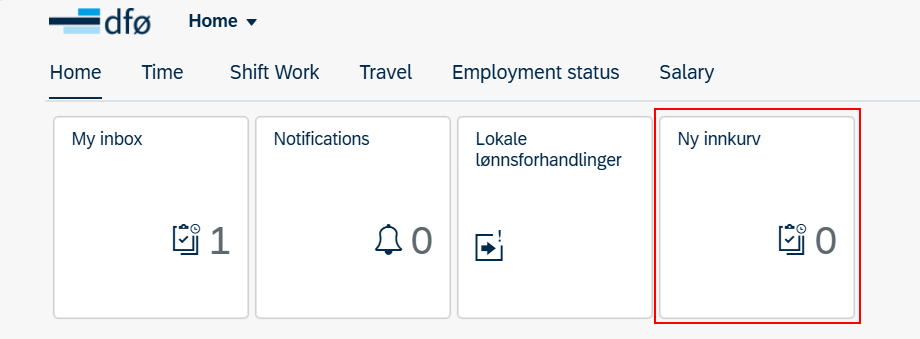
Click the task for more information. Here you can also read the return message from the approver.
To correct the termination form, click Open task at the bottom right.

Remember to resubmit the form to your manager after making the corrections.
Returned forms can also be processed via the Termination of employment tile.
Contact
Do you have questions about the content of this page?
Contact our customer service centre
- lonn [at] dfo.no (lonn[at]dfo[dot]no)
- (+47) 40 63 40 21